Browser Extension (Browser Extension)
This guide will walk you through installing and using the BlobGet Browser Extension, which enhances your downloading experience with one-click integration and smart download management.
1. Supported Browsers & Installation
The BlobGet Browser Extension is available for two major browsers, ensuring wide compatibility for most users.
Supported Browsers
- Google Chrome
- Microsoft Edge
Installation Guide
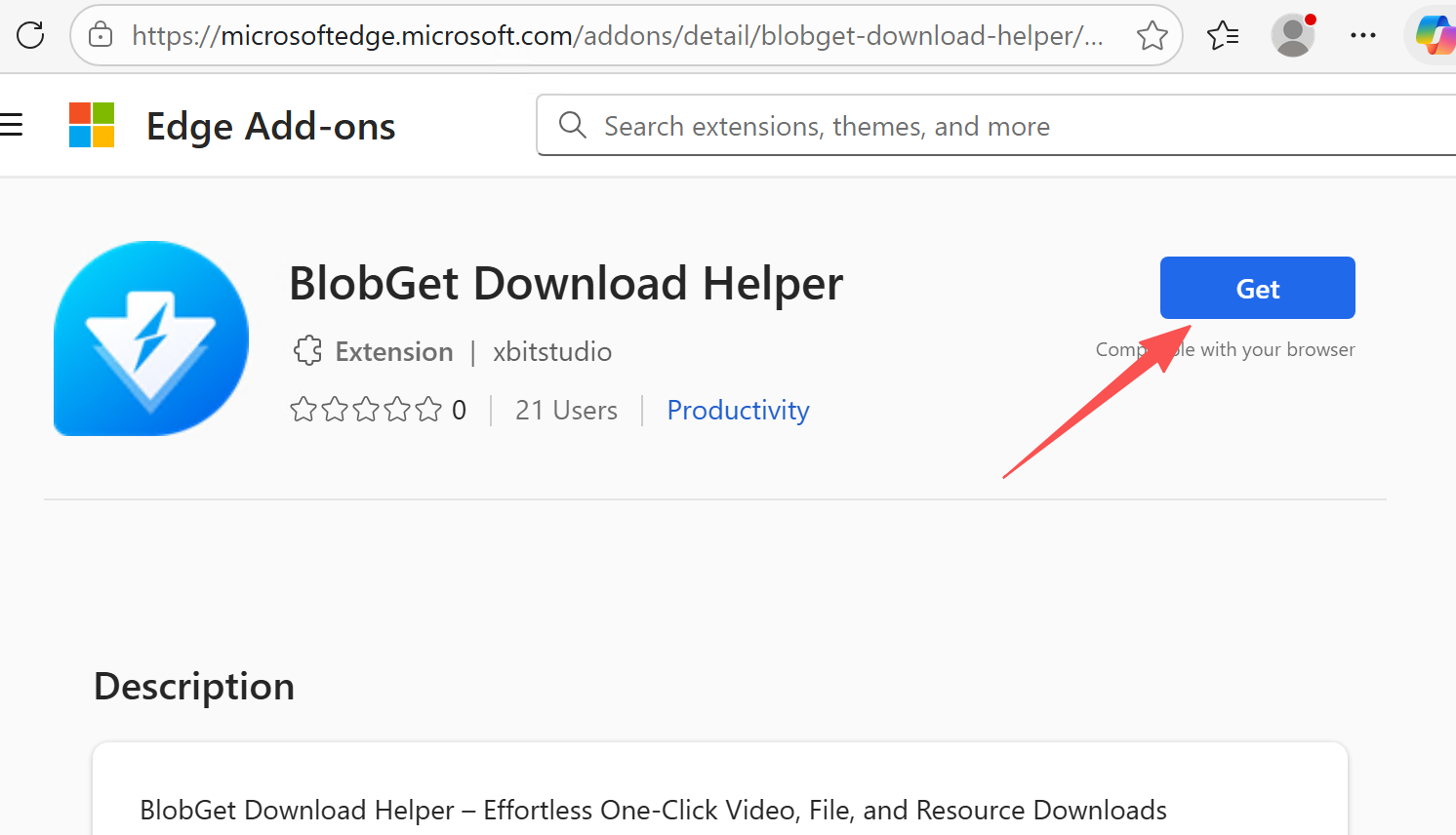
To get started, install the extension directly from the official extension marketplaces:
- For Chrome Users: Click directly to install via the BlobGet Chrome Extension .
- For Edge Users: Click directly to install via the BlobGet Edge Extension .
- Click the "Add to Chrome" or "Get" button and follow the on-screen prompts to complete the installation.
2. Basic Usage: Right-Click Download
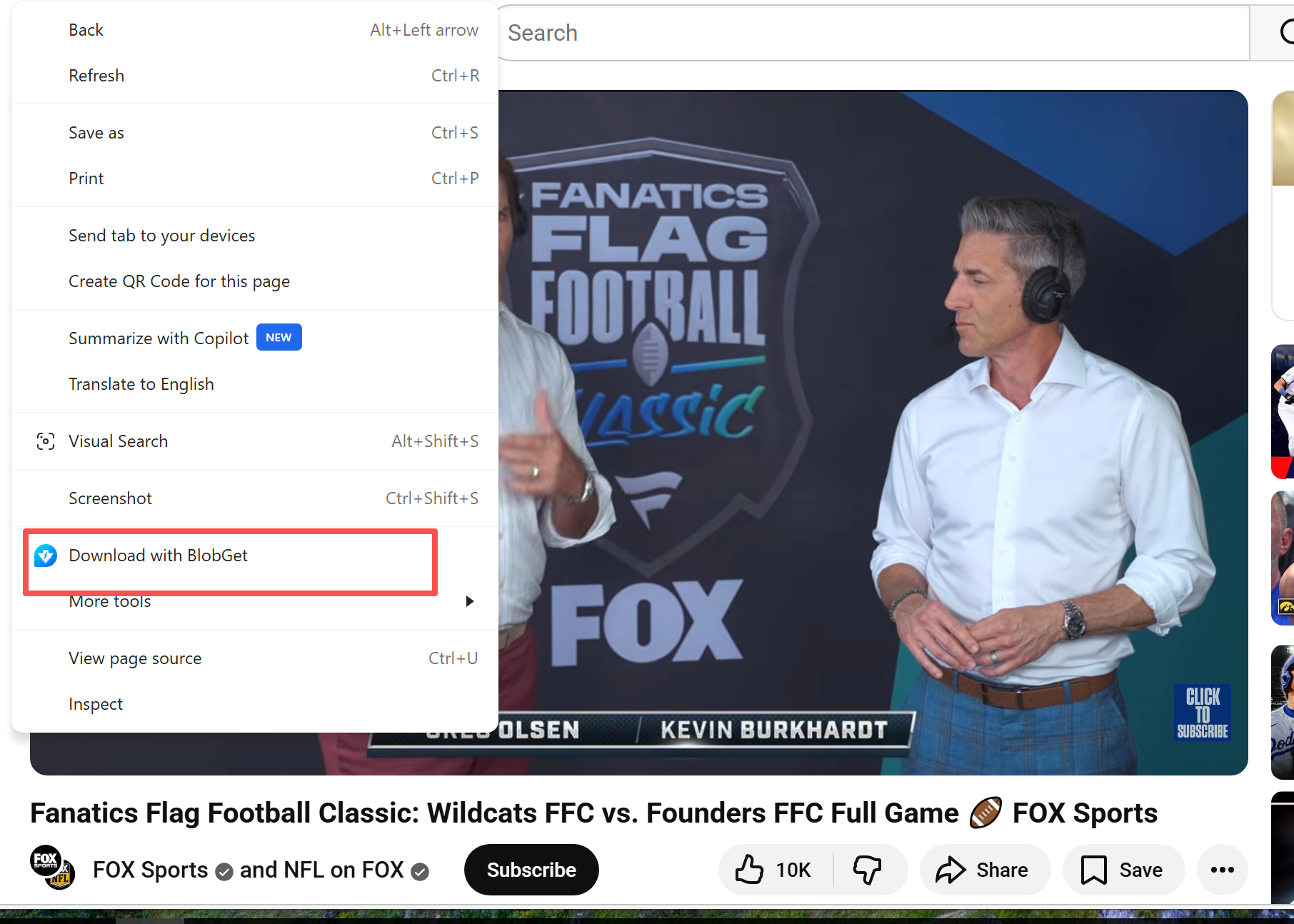
The extension provides a seamless right-click context menu, allowing you to download links or media without copying URLs manually.
How to Use
- On a Downloadable Link: Right-click on any direct link (HTTP/HTTPS) or media element on a webpage.
- On a Blank Area: Right-click on an empty space on the webpage.
- Select the Option: From the context menu that appears, select "Download With BlobGet".
- The BlobGet app will automatically launch and parse the link for download.
3. Smart Download Management (Event Catching)
The extension can monitor and manage your browser's native download events, giving you more control over what gets downloaded and when.
Configure Download Settings
- Click the BlobGet extension icon in your browser toolbar to open the settings panel.
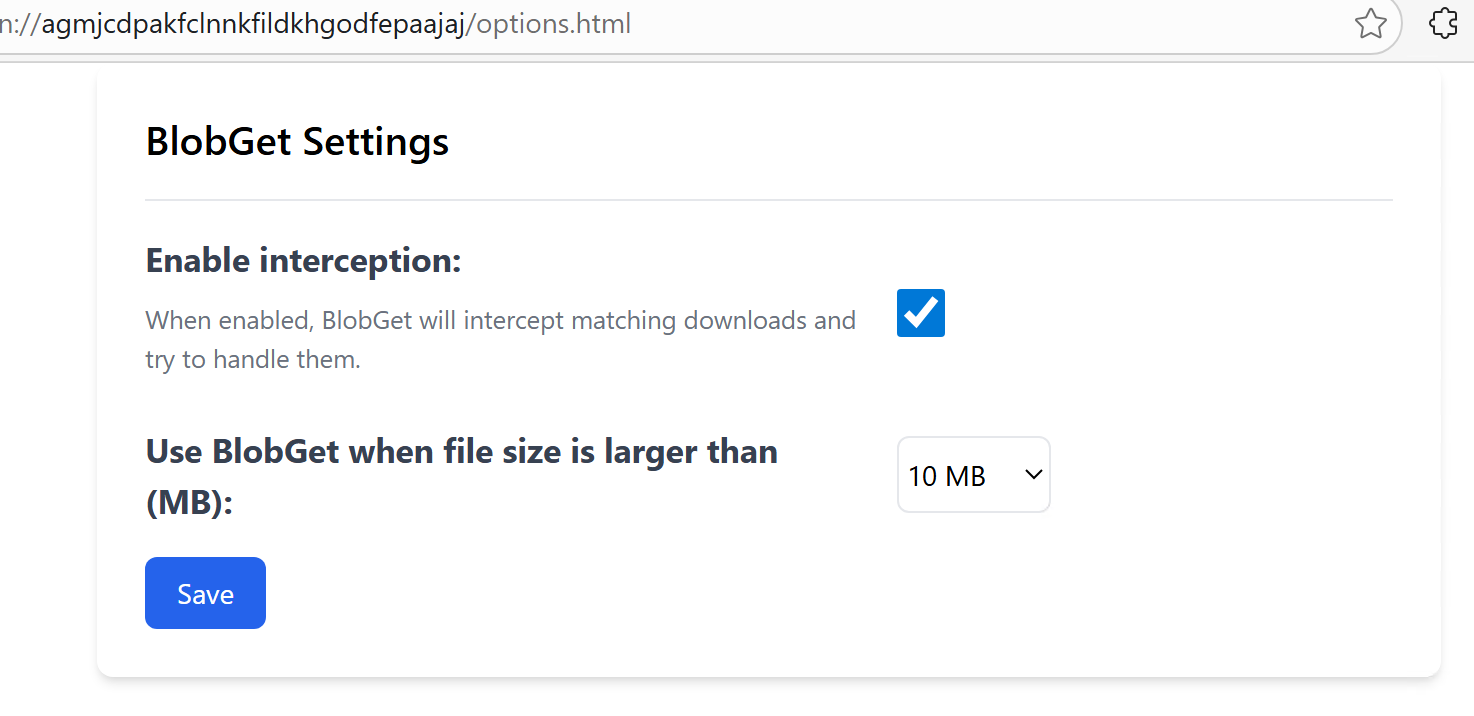
- Enable/Disable Auto-Capture: Toggle the setting to allow BlobGet to automatically catch browser download requests.
- Set File Size Threshold: Define a minimum file size (e.g., 10MB, 100MB) for auto-download. Files larger than this threshold will be sent to BlobGet automatically, while smaller files will use the browser's default download.
4. Important Notes for YouTube Download
Due to strict policies and technical limitations imposed by the Google Chrome Web Store, the Chrome version of the BlobGet Browser Extension does not support downloading videos from YouTube.
Workaround
- If you need to download YouTube videos, we recommend using the Microsoft Edge version of the BlobGet Browser Extension, which has full support for YouTube and other major video platforms.
- Alternatively, you can use the BlobGet desktop application directly to parse YouTube links.
Pro Tips (Practical Tips)
- Seamless Integration: The browser extension works hand-in-hand with the BlobGet desktop app. The app can be used normally even when it is not open in the foreground, ensuring a smooth experience.
- Login Required Content: For websites that require user authentication to download files, the browser extension can assist in passing along session cookies for successful downloads.
- File Organization: All downloads initiated via the extension will be automatically classified and stored in the BlobGet app, making it easy to manage your downloaded files.