Buy And Activation (Buy And Activation)
Buy And Activation
This document details the functional differences between activated and unactivated BlobGet, as well as the specific steps for activation (via traditional License activation code) and purchase, helping you quickly complete the activation and enjoy all functions. BlobGet does not require account registration or login; you can fully unlock all functions with a valid activation code.
1. Functional Comparison (Activated vs Unactivated)
The core difference between the activated and unactivated versions of BlobGet lies in the download limit of online videos and audios; all other functions are completely consistent. The specific comparison is as follows:
| Function | Unactivated Version | Activated Version |
|---|---|---|
| Online Video & Audio Download | Limited number of downloads (trial limit) | Unlimited downloads, full support for all supported platforms |
| General File Download (HTTP/HTTPS) | Full support, no restrictions | Full support, no restrictions |
| Magnet Link & Torrent Download | Full support, no restrictions | Full support, no restrictions |
| Browser Extension Integration | Full support, no restrictions | Full support, no restrictions |
| Download Management (Speed, Path Customization) | Full support, no restrictions | Full support, no restrictions |
| File Automatic Classification | Full support, no restrictions | Full support, no restrictions |
2. How to Activate BlobGet in the Software
After purchasing the activation authorization, follow these steps to activate BlobGet. Ensure the software is updated to the latest version before activation to avoid activation failures.
Activation Steps
- Open the menu button in the upper right corner of the BlobGet desktop software (no account registration or login required), and click the "Upgrade Pro" option in the pop-up drop-down menu.
- Enter the activation code obtained after purchase in the pop-up dialog box, then click the activation button.
- After successful activation, an "Activation Successful" prompt box will pop up. You can click the "About" option in the menu to view the activation information.
Activation Notes
- The activation code is unique and can only be used for the number of devices specified in the purchase agreement.
- If the activation fails, please check whether the activation code is entered correctly, whether the software is the latest version, and whether the network connection is normal.
- After activation, the authorization is bound to the device used for activation. Each activation code can be used for the number of devices specified in the purchase agreement.
3. How to Purchase BlobGet Activation Authorization
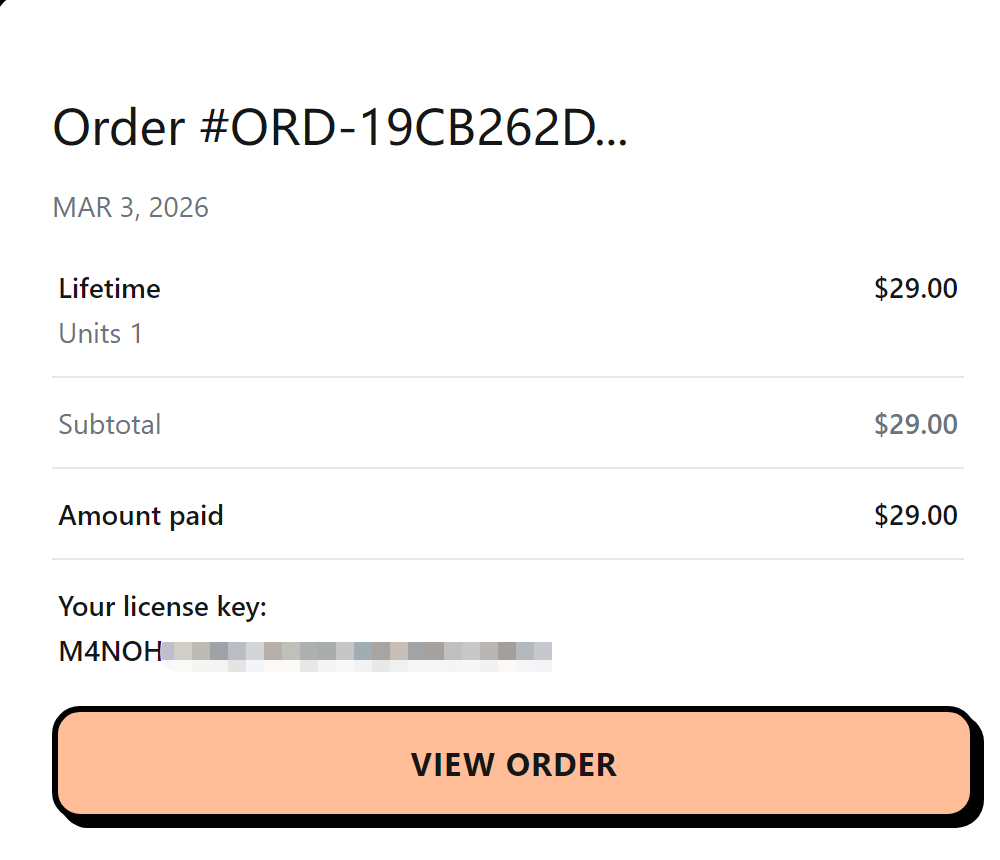
BlobGet uses a traditional License activation method and does not require account registration or login. Its activation authorization can be purchased directly through the official purchase page. After purchase, you will receive one License activation code, which can activate two products and is only valid for use on one device. The activation codes are divided into two types: monthly subscription and lifetime validity.
Purchase Steps
- Click here to purchase License code
- After the payment is completed, you will receive an email containing the License activation code (sent to the email address you filled in when placing the order).
Purchase Notes
- After purchase, the validity period of the activation code depends on the selected type: monthly subscription activation codes are valid for 30 days from the date of activation, and lifetime activation codes have no time limit after activation.
- Each purchase of BlobGet activation authorization includes one License activation code, which can activate two products and is only allowed to be used on one device.
- If you have any questions about the purchase process, please contact our official support team for consultation, and the final support will be provided via [email protected].