How to Use (How to Use)
This guide will help you master the core functions of BlobGet, including downloading general files, online videos, and using magnet links/torrent files, with clear steps and image placeholders for easy reference.
1. Download General Files (General File Download)
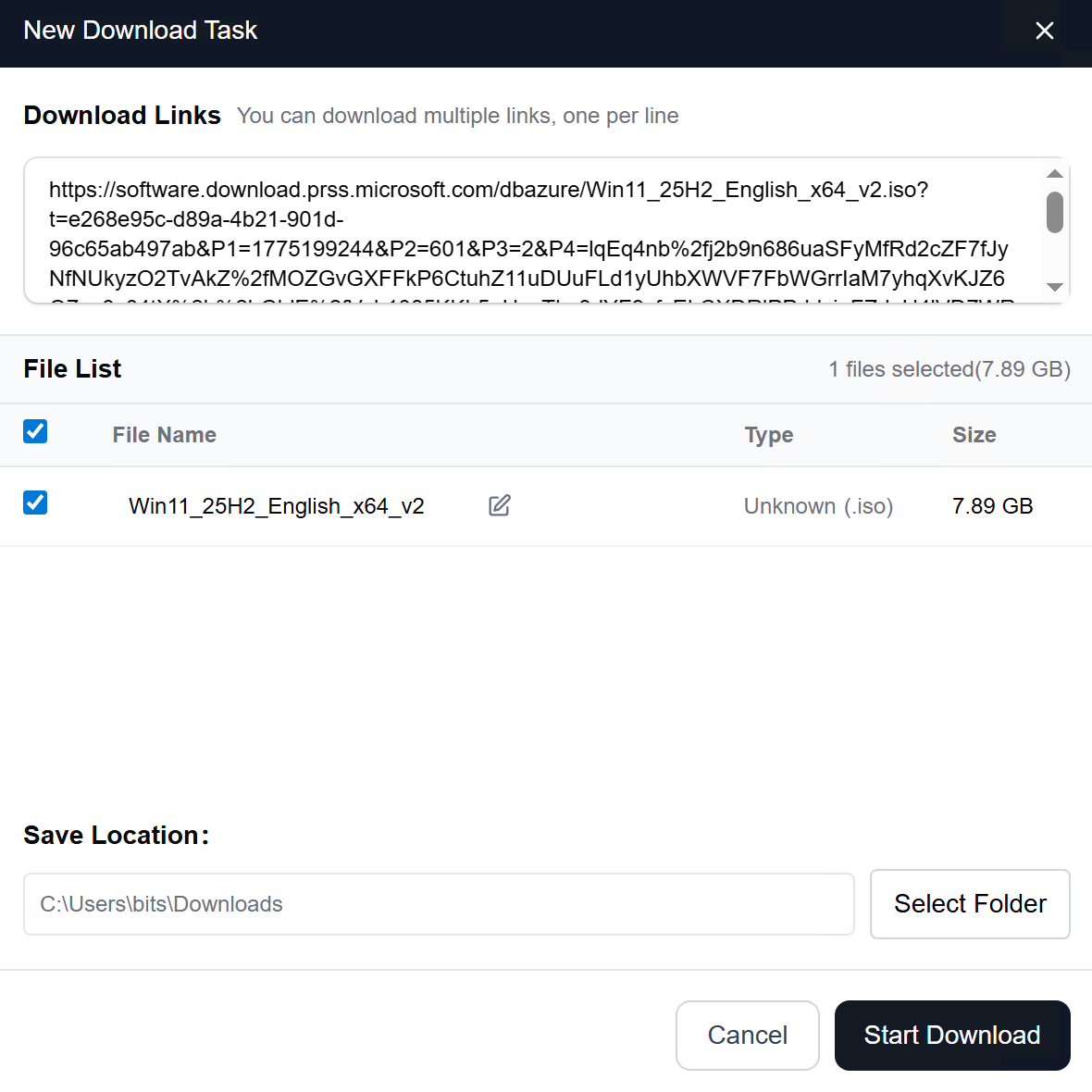
- Copy the Direct Download Link Find the direct download link of the file you want to download (supports HTTP/HTTPS protocol), and ensure the link is valid.
- Paste the Link into BlobGet Open BlobGet, paste the copied direct link into the input box at the top of the main interface, and the software will automatically recognize the file type.
- Start Downloading
No additional settings are required. Click the "Download" button, and BlobGet will automatically complete the download and save the file to the default path (you can customize the save location in the settings).
2. Download Online Videos (YouTube/TikTok etc.)
- Get the Video Link On the video platform (such as YouTube, TikTok), copy the full URL of the video you want to download.
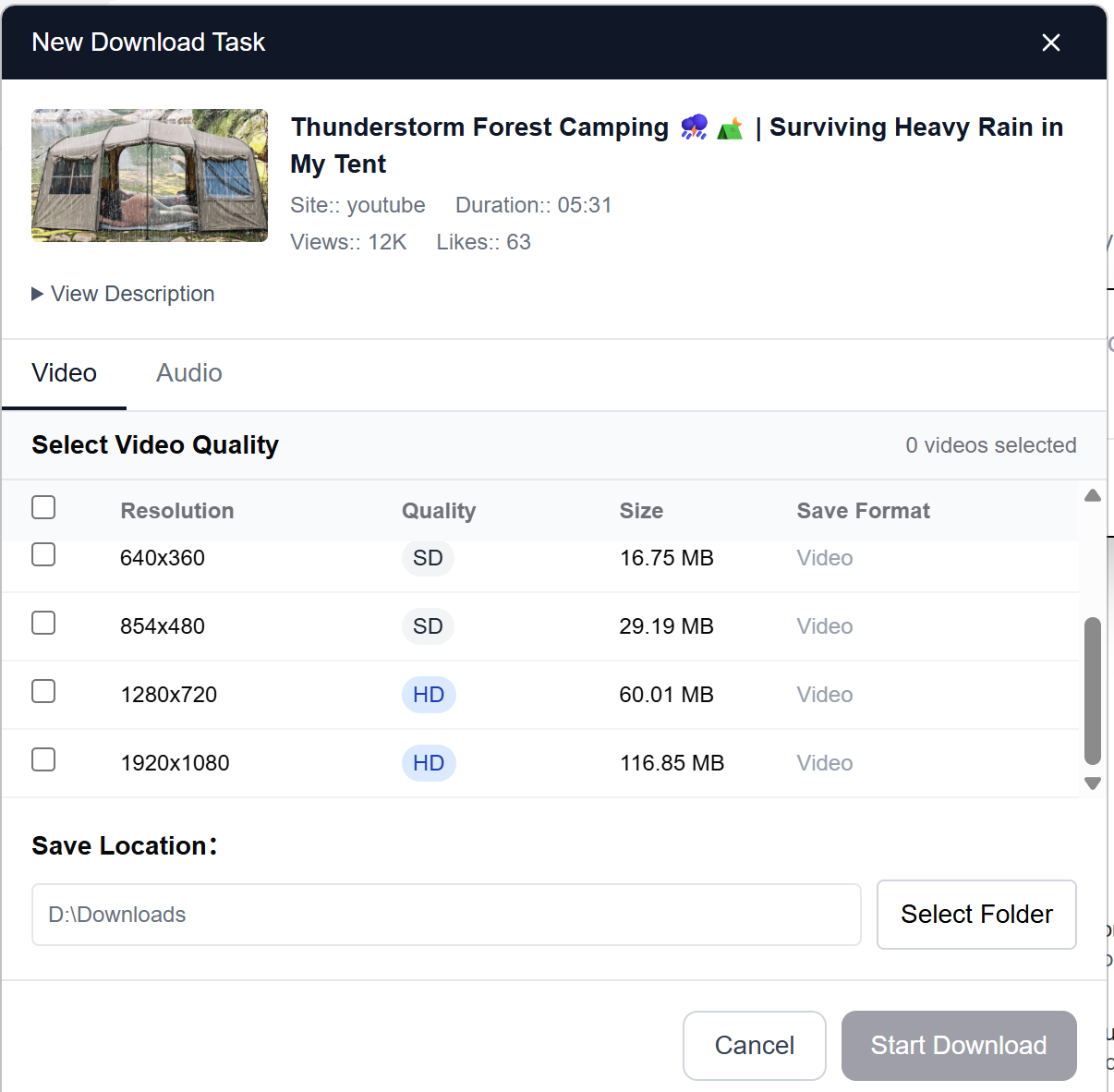
- Paste and Parse the Link Paste the video link into the BlobGet input box. The software will automatically parse the video information and display the available quality options (e.g., 1080p, 720p).
- Select Quality and Start Download
Choose your preferred video quality and save format, then click the "Download" button. The video will be saved to your local device, and you can view the download progress in real time.
3. Download via Magnet Link/Torrent File
Option 1: Use Magnet Link
Copy the magnet link of the resource you want to download, paste it into the BlobGet input box, and the software will automatically connect to the P2P network to start the download.
Option 2: Use Torrent File
Click the "Import Torrent" button on the BlobGet interface, select the local .torrent file, and the software will parse the torrent information and start the download.
Step 3: Monitor Download Progress
You can view the download speed, remaining time, and task status in the "Download Management" interface, and the downloaded files will be automatically classified and sorted.
Pro Tips (Practical Tips)
- For online videos and files, you can use the BlobGet browser extension (compatible with Chrome and Edge) to download directly with one click, without switching between multiple tools.
- For files that require login to download, the BlobGet browser extension can assist in accessing and downloading, ensuring smooth operation.
- BlobGet supports automatic classification of downloaded files. You can customize the save path and classification rules in the settings to keep your files organized.
- If the link cannot be parsed, check whether the link is valid, and try re-pasting the link or updating the software to the latest version.